



Energy Monitor + EMS Installer Guide
EMS setup
Six steps to pair the Energy Monitor and the Autel into an energy management system and reach "Energy Management verified".
The electrician runs this setup, on site, before leaving. You know the panel rating and which circuit each sensor is on; the homeowner doesn't. The EMS is not commissioned, and the job is not done, until the NeoCharge app shows Energy Management verified.
Everything runs on the homeowner's phone, signed in to their NeoCharge and Autel accounts. The NeoCharge account uses the homeowner's phone number.

| Step | What |
|---|---|
| 1 | Install the Autel: rotary dial set, wired and powered on |
| 2 | Autel app firmware update: connect over Bluetooth, update to 1.36 or later, factory reset, set max current |
| 3 | Install the Energy Monitor |
| 4 | Add the Autel charger to the NeoCharge app using OCPP: paste 3 fields into Autel app › OCPP Server › Custom |
| 5 | Set up the Energy Monitor and EMS in the NeoCharge app: More › Add Device › Set Up Energy Management |
| 6 | Test charge until the app shows "Energy Management verified" |
Step 1: Install the Autel
- Install and wire the Autel per Autel's installation manual.
- Set the rotary dial inside the Autel to the charger circuit before you close the cover and mount the unit. For example, 40 A on a 50 A breaker. Some units ship set to 50 A.
- Power the charger on. It must be powered before Step 2.
Step 2: Update and reset the Autel
On the homeowner's phone:
- Download the Autel Charge app and sign in to (or create) the homeowner's Autel account.
- Turn on Bluetooth and stand near the charger. Bluetooth range is typically 10–30 ft.
- Add the charger by following the prompts, using the charger PIN from the Autel Quick Start booklet. Join it to the home 2.4 GHz Wi-Fi.
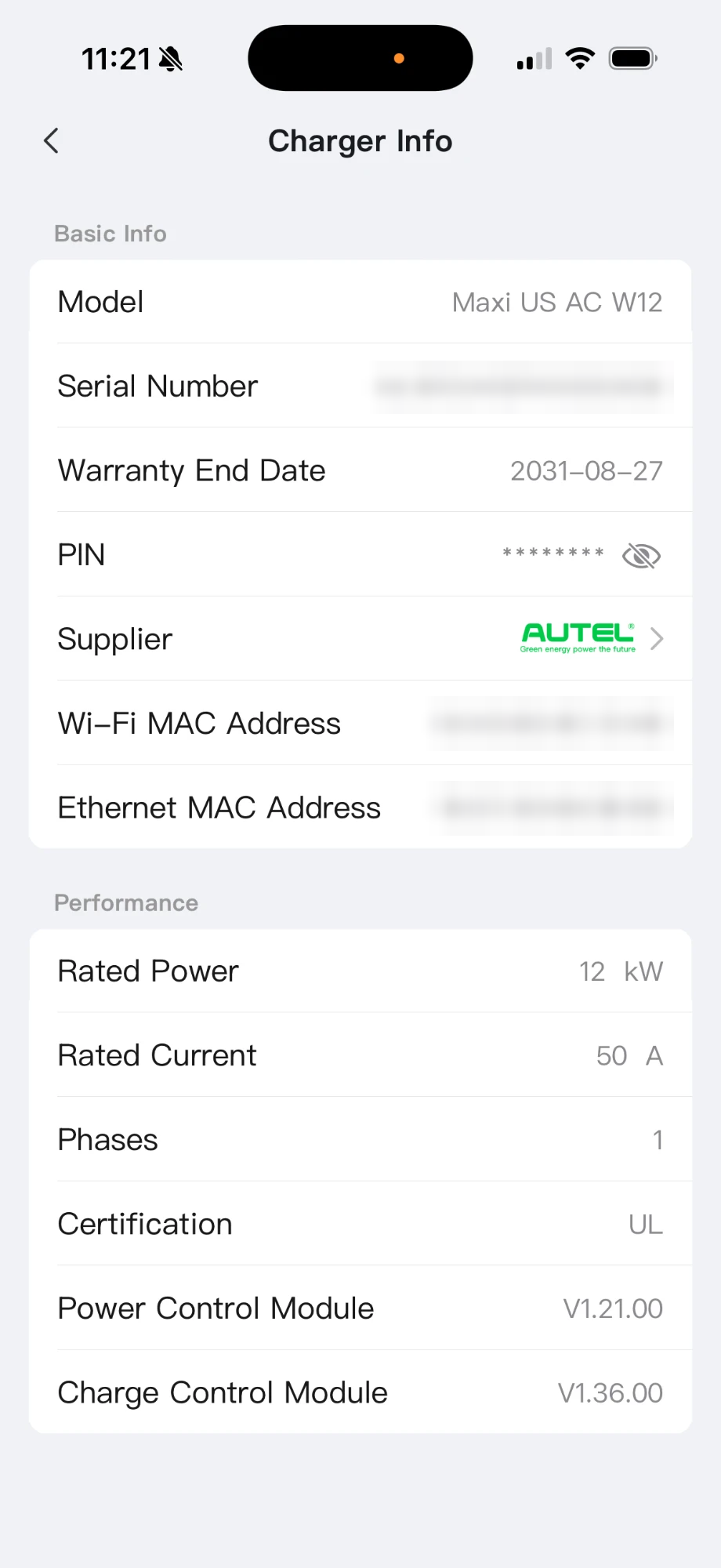
- Check the firmware version in Charger › Charger Info: the Charge Control Module needs to be on V1.36 or later. If it isn't, run Charger › Firmware Update. It takes 5–10 minutes: go to Step 3 while it runs.
- When the update finishes and the charger reboots, confirm the version number, then factory reset the charger from Charger › Factory Reset. Reconnect to it and rejoin the Wi-Fi.
- Set the charger's maximum current to match the dial and the circuit, for example 40 A on a 50 A breaker.
- Confirm the charger's Internet light is on.

Danger
Don't turn off the main breaker while the Autel is updating. If the update is still running when you're ready to kill the main, wait.
Tip
- Below V1.36, OCPP pairing won't work.
- The factory reset also fixes a charger stuck at 16 A.
- "The device serial number and PIN do not match": the PIN in the booklet doesn't match that charger. Call Autel Customer Support at 1 (844) 765-0150 from site with the charger serial number. Autel gives the correct PIN (and can release a charger still on another Autel account). Then remove the charger from the app and add it again.
Step 3: Install the Energy Monitor
Do the hardware install in Install the Energy Monitor while the firmware updates. Before you continue:
- The back label is photographed (serial and installer PIN).
- CT placement photos are taken.
- The cover is on, power is restored and the status light is purple with a blue blink.
- The Autel update has finished, the charger is factory reset, and it is back on the Wi-Fi.
Step 4: Add the Autel charger to the NeoCharge app (OCPP)
- In the NeoCharge app, tap Add Device › Add Your Smart Charger › Autel and complete the checklist.
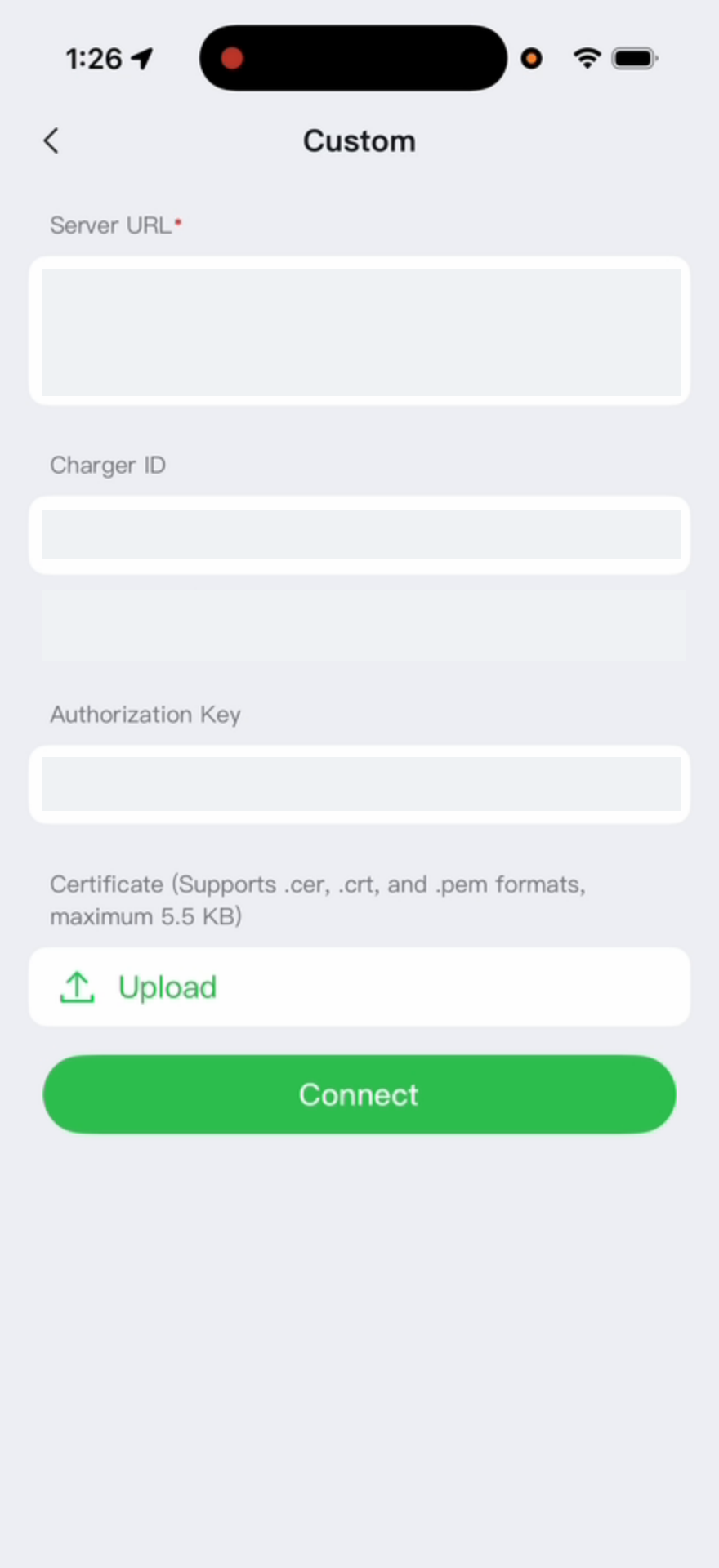
- The app shows exactly 3 fields: Server URL, Charger ID and Authorization Key. Leave this screen open.
- In the Autel Charge app, open the charger › OCPP Server › Custom.
- Copy-paste each of the 3 fields from the NeoCharge app into the Autel app, one at a time. Never retype them.
- Tap Connect (or Save) and follow the restart prompt.
- Wait 60–90 s for the charger to reboot and connect. It then shows online in the NeoCharge app.

Warning
A wrong key is the most common failure.
- Re-adding the charger in the NeoCharge app issues a new Charger ID and Authorization Key. Always paste what the app shows at that moment. Never reuse a key from an earlier attempt.
- Check that no leading or trailing space came along with the paste.
- If the Autel app shows separate Server URL and Server Path boxes: put the address up to the domain in Server URL, and everything after it in Server Path, starting with "/".
- Don't tap verify before the 60–90 s are up.
Note
If the charger works in the Autel app, its Wi-Fi is fine. An OCPP failure with the charger online is firmware, the factory reset or the key. See Charger offline in the NeoCharge app.
Step 5: Set up the Energy Monitor and EMS
Stand at the electrical panel with the homeowner's phone.
- In the NeoCharge app, tap More › Add Device › Set Up Energy Management.
- Select the Autel you connected in Step 4.
- Onboard the Energy Monitor over Bluetooth. Stay near the panel and follow the prompts. Join it to the same 2.4 GHz Wi-Fi as the charger, or confirm Ethernet.
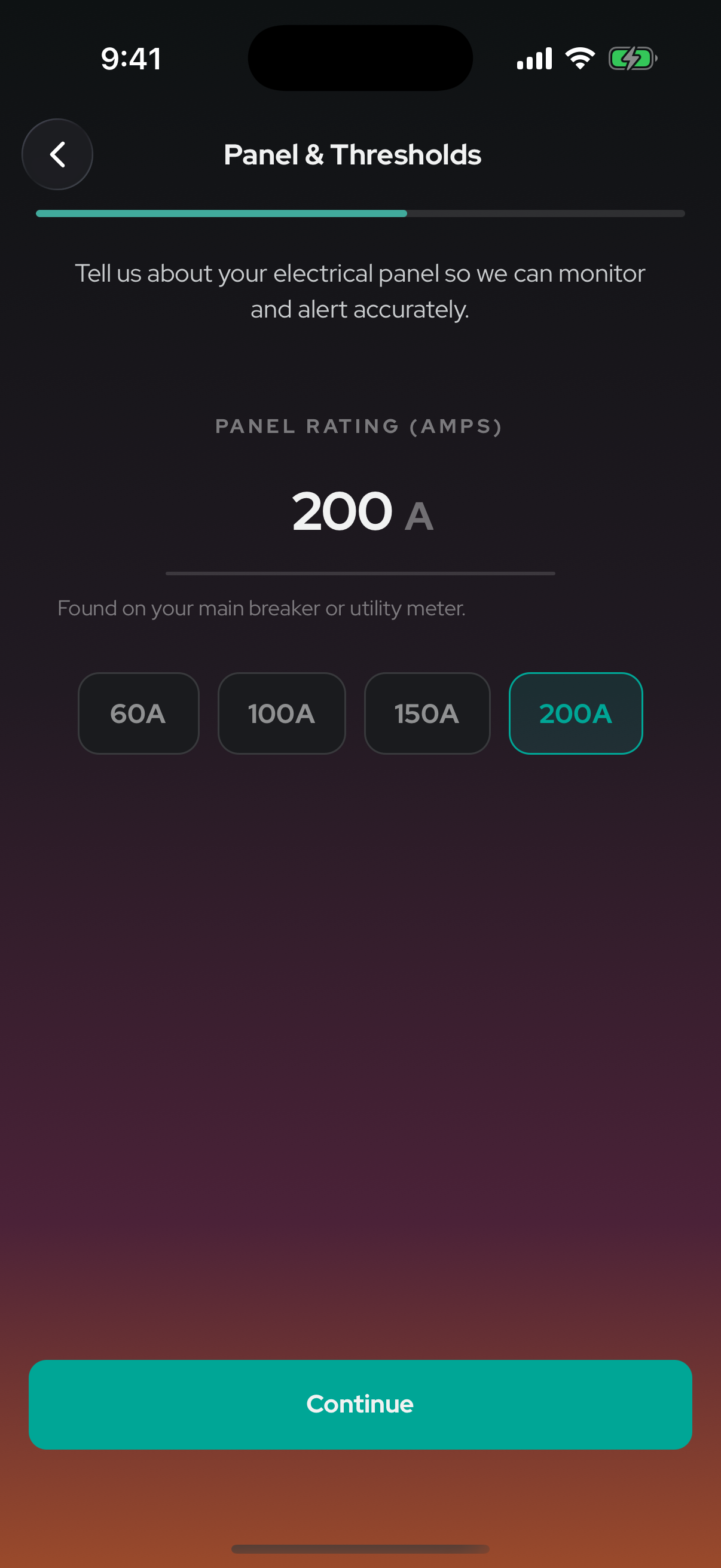
- Panel: choose Main panel or Subpanel and enter the rating of the breaker the EMS protects: - Main panel: the main breaker rating, for example 100 A or 200 A. - Subpanel: the feeder breaker that feeds that subpanel, for example 90 A. - Read it from the breaker itself. The EMS holds total load to 100% of this number. Enter the real breaker rating, never a derated value.
- Sensors: pick the sensor type (standard CT clamps or Rogowski coils). CT 1 and CT 2 are the mains.
- Solar or battery: answer the solar and battery question accurately. A source in the panel makes the mains read net, and solar export reads negative.
- "How are CT 3 and CT 4 installed?" - One 240V circuit: CT 3 and CT 4 are both on the Autel, one per leg. Then answer "Is this your EV charger?" and pick the Autel. - Two different circuits: CT 3 is on its own circuit (a battery, solar or another load). Mark CT 4 as the Autel. Set each circuit to 120 V or 240 V to match.
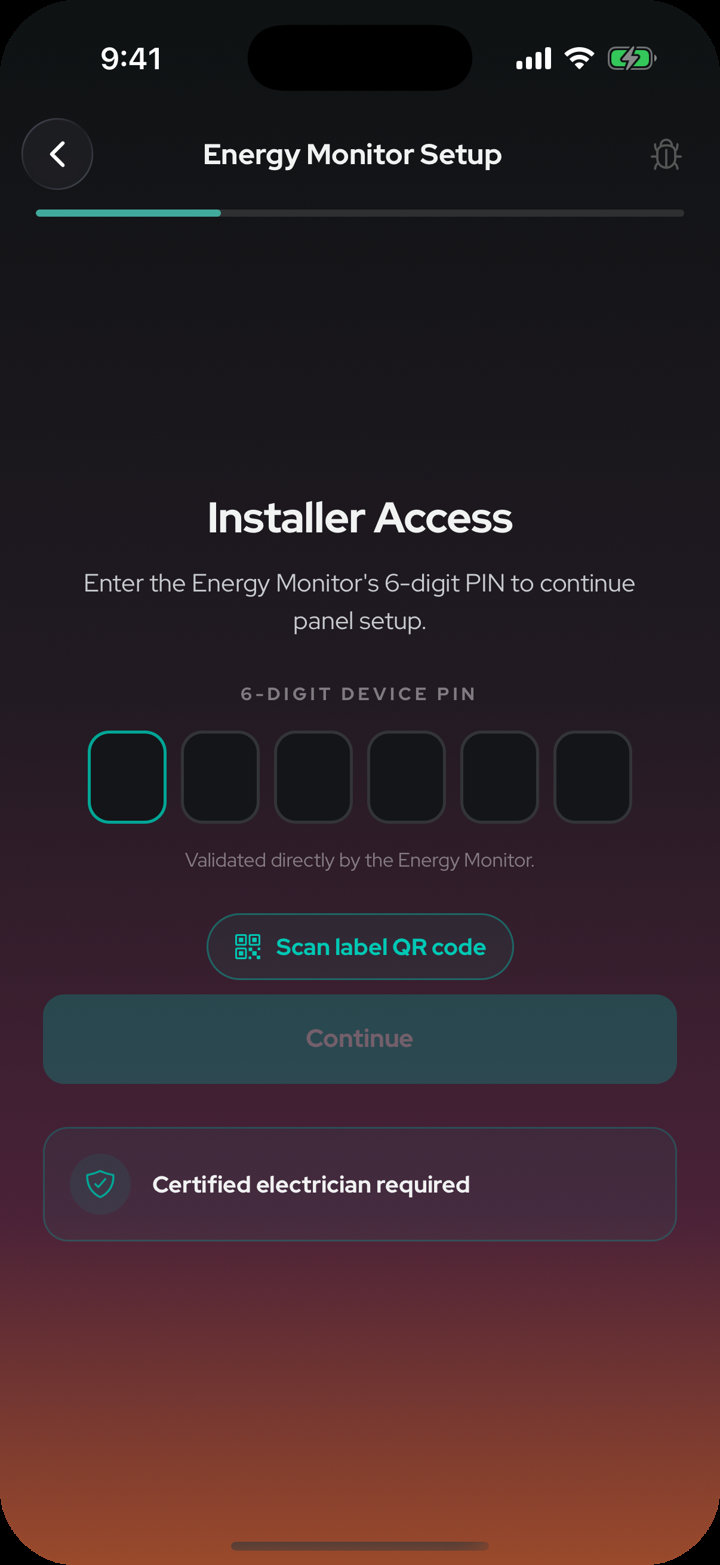
- Enter the 6-digit installer PIN from the Energy Monitor back label, or tap Scan label QR code. The PIN locks the panel rating, so the EMS keeps total load under it. Changing the rating later requires the PIN.




Tip
Bluetooth times out on the second try ("Security1Handshake timeout"): turn the phone's Bluetooth off for 5 s and back on, power-cycle the Energy Monitor at its breaker, then retry. If the status light is purple with no blink, press the button on the monitor once to reopen Bluetooth.
Step 6: Test charge and verify
- Plug the Autel into the car and run the in-app test charge. It takes about 2 minutes. Charging ramps up over 1–2 minutes while the monitor confirms there's headroom.
- With a battery or solar on site, run the test with the sources idle: at night, with the inverter off, or with the battery set to backup-only for a few minutes.
- Watch the readings. The charger channel (CT 4) should rise to about the charger current, and the mains should rise by about the same amount.
- Confirm the charging current matches in both the Autel app and the NeoCharge app.
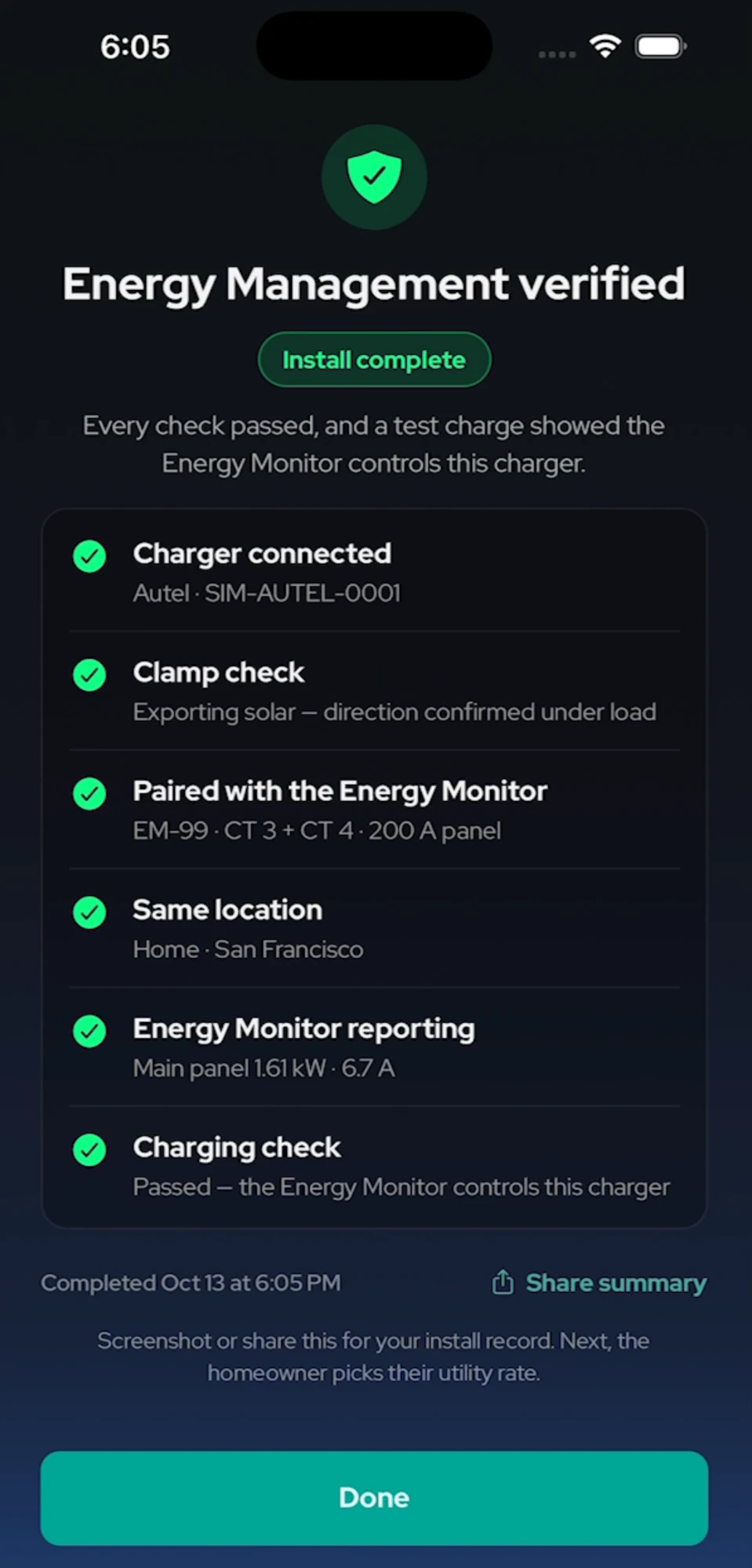
- Continue until the app shows Energy Management verified, with all checks green and the Install complete badge.
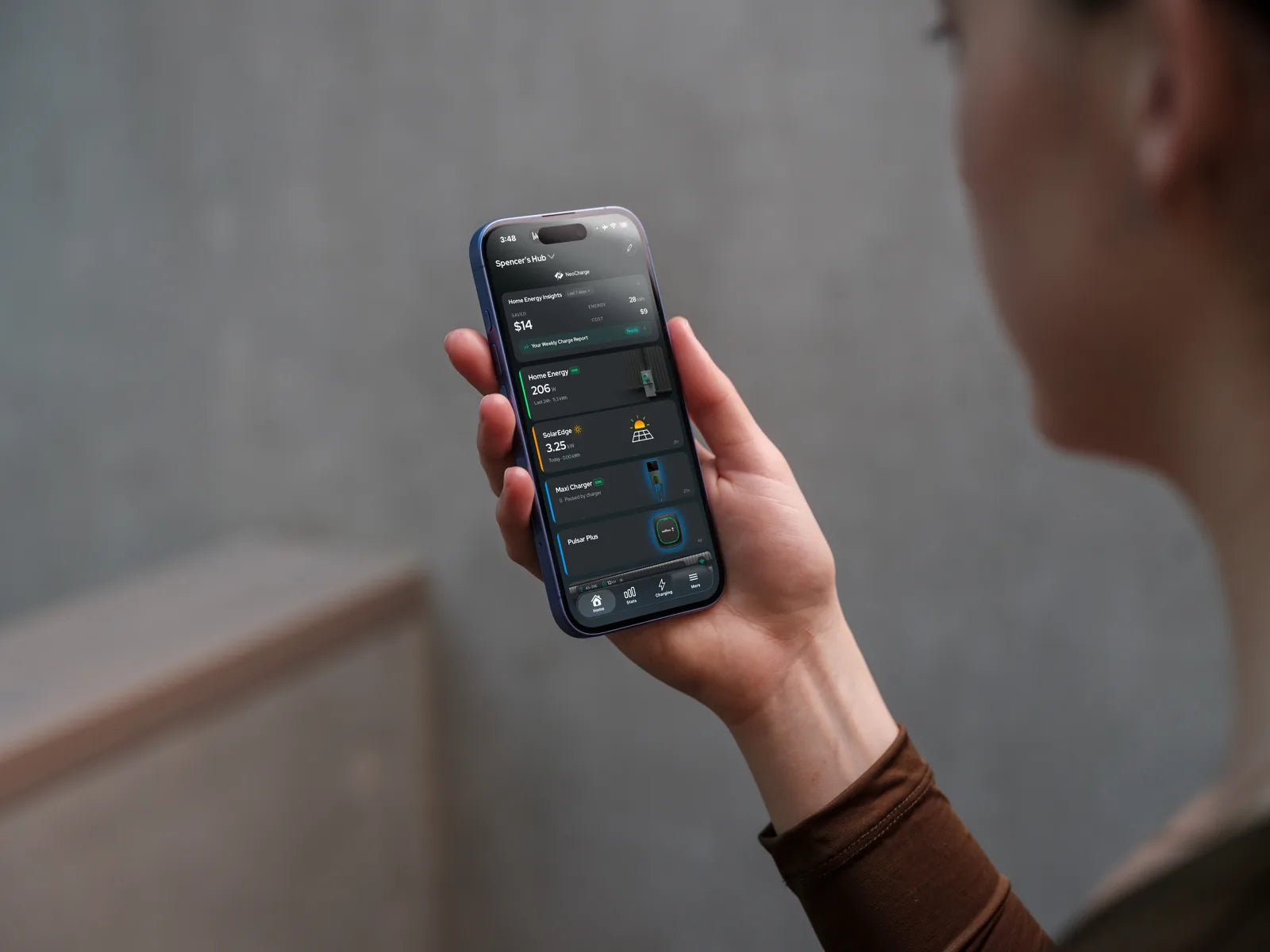
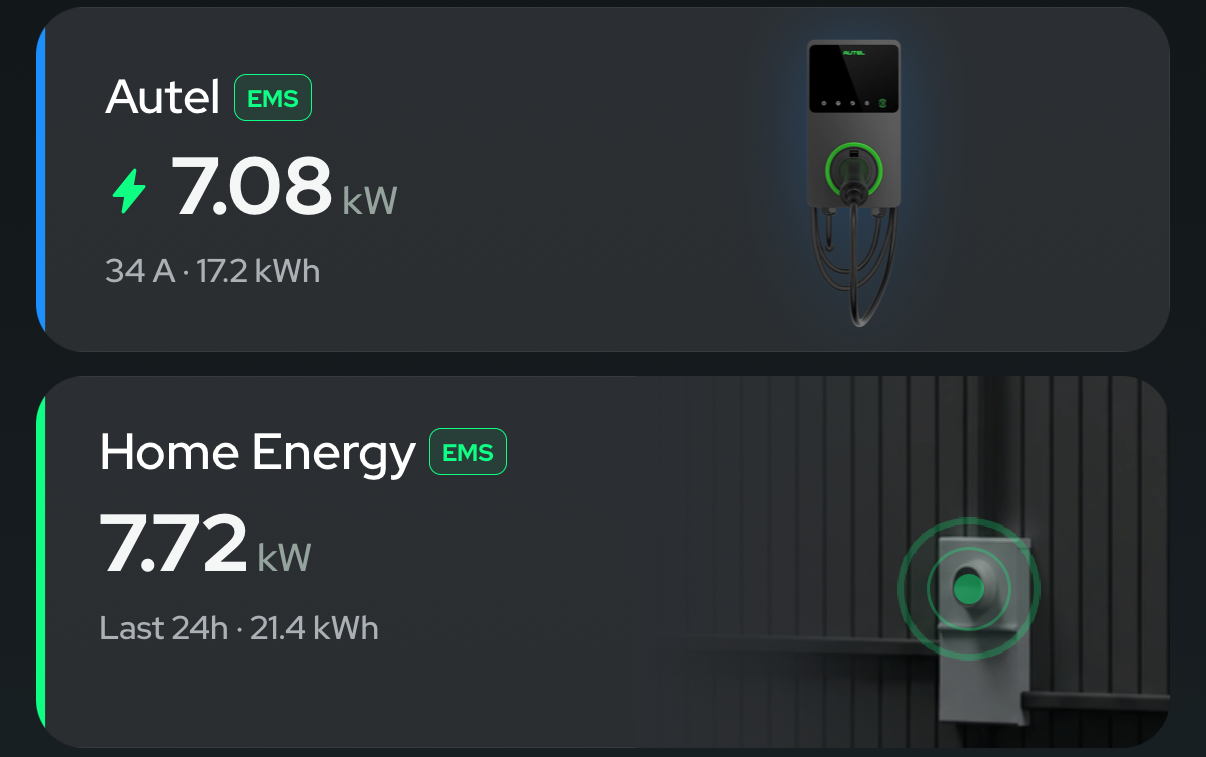
- Tap Done. On the app's home screen, the Autel and Home Energy cards both show a green EMS badge. That confirms the two devices are paired.
Warning
"Continue anyway", "Finish without a check" and the earlier "Paired and reading" or "EMS pairing complete" screens don't count. If a check fails, fix it on site. The readings table in Readings don't match explains each failure.
| During the test charge | Meaning | Fix |
|---|---|---|
| CT 4 rises to ~32–40 A and the mains rise by about the same | Correct | Continue |
| Mains jump, CT 4 stays ~0–1 A | Main and branch sensors swapped between ports | Ports 1–2 ↔ 3–4 |
| Mains flat (~0–4 A) while the car charges | Mains not upstream of the Autel, or not plugged in | Re-place the mains per Step 7 |
| A reading is negative | Sensor backwards or polarity swapped, or a source exporting | Flip the sensor; idle the sources and retest |
| CT 3 / CT 4 reads about half | A 240 V circuit set as 120 V | Fix the CT 3 / CT 4 answer |
| Charging stuck at 7 A or 16 A | The Autel's own limit | Factory reset, then set the max current |
Hand off to the homeowner
Show the homeowner the NeoCharge app: the Energy Monitor online, the charger online and the energy view. Then tell them:
- Charging may slow when the home is under heavy load. That's the EMS working.
- Charging ramps up over 1–2 minutes after the car is plugged in.
- EMS settings are locked. Changing the panel rating needs the installer PIN.
- Changing the Wi-Fi network or password later means re-onboarding both devices.
- Their phone's Wi-Fi is not the charger's or the monitor's. A phone off Wi-Fi doesn't affect charging.
- Keep the NeoCharge app updated.
- Charger PIN, Autel account or charger hardware issues: Autel Customer Support, 1 (844) 765-0150.
How the EMS behaves during interruptions
- The Energy Monitor loses power or its connection, or the charger loses its connection: charging pauses after a short safety timeout. The app shows Charging paused.
- The charger loses power: charging stops until power returns.
- When it resumes: charging is designed to resume automatically once power, the connection and monitoring are back, the vehicle is ready to charge, there is capacity available, and the schedule and settings allow it.
- Charger fault codes are covered by the Autel manual. Not every charger fault clears by itself.
Two Energy Monitors
For a main panel + subpanel install (B1) (see Two Energy Monitors), run Step 5 for each monitor: Main panel with the main breaker rating for one, Subpanel with the feeder breaker rating for the other. The charging limit follows whichever panel has less headroom.
Something wrong or unclear on this page? Email support@getneocharge.com. Rev 004 is the controlled copy.
